This article explains how clients can add themselves to the online walk-in queue and how estimated wait times are calculated.
Things to know:
- Clients can add themselves to the walk-in queue online through the booking widget or express checkout page.
- You can set a maximum wait time limit. If the estimated wait exceeds this limit, clients will not be allowed to join the walk-in queue. Learn more here.
- Estimated Wait Times
- Estimated wait times are based on the selected employee’s availability (working hours and appointments) and resource availability.
- By default, appointments that have been waiting for more than 15 minutes are ignored when calculating wait times. Example: If the next available slot is 9:00 AM and it is currently 8:45 AM, the estimated wait time displayed to clients will be 15 minutes.
- Ignored appointments will display as “N/A.” To adjust the threshold for ignored appointments, contact Customer Support at support@mytime.com .
- To calculate wait times using all staff members (not just those clocked in), the hidden setting “Use work schedule to calculate wait times?” must be enabled. Contact Customer Support to activate this.
- Next Available Staff Algorithm
- The system determines which staff member is “next available” using the following logic:
- Which employee can perform the appointment sooner.
- Which employee is least busy at the current time (considering concurrent appointments).
- Which employee was assigned an appointment less recently.
- Preferred Staff Selection
- If a client selects a preferred staff member while the “Make waitlist same-day only?” setting is enabled:
- If the staff member has no availability, the client sees: “There is no available time for today.”
- If the staff member is available, the estimated wait time is displayed.
Once the walk-in queue is configured on your website, clients can add themselves to the walk-in queue by:
- Navigate to your business website or booking widget
- If your business has multiple sites, select their preferred location
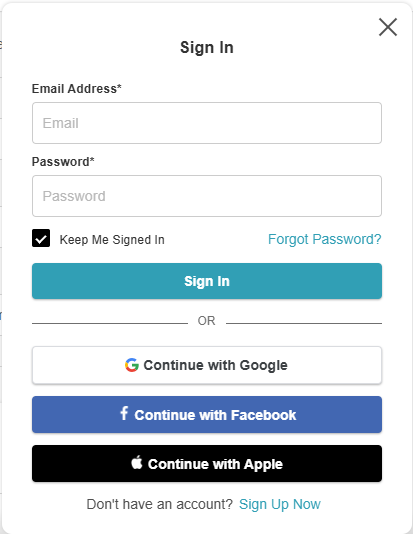
- Click the "Sign In" button at the top of the page
- Choose their login method:
- Standard: Enter their registered email address and password, then click 'Sign In'
- Social Login: Select 'Continue with Google,' 'Continue with Apple,' or 'Continue with Facebook' to use their existing social media credentials
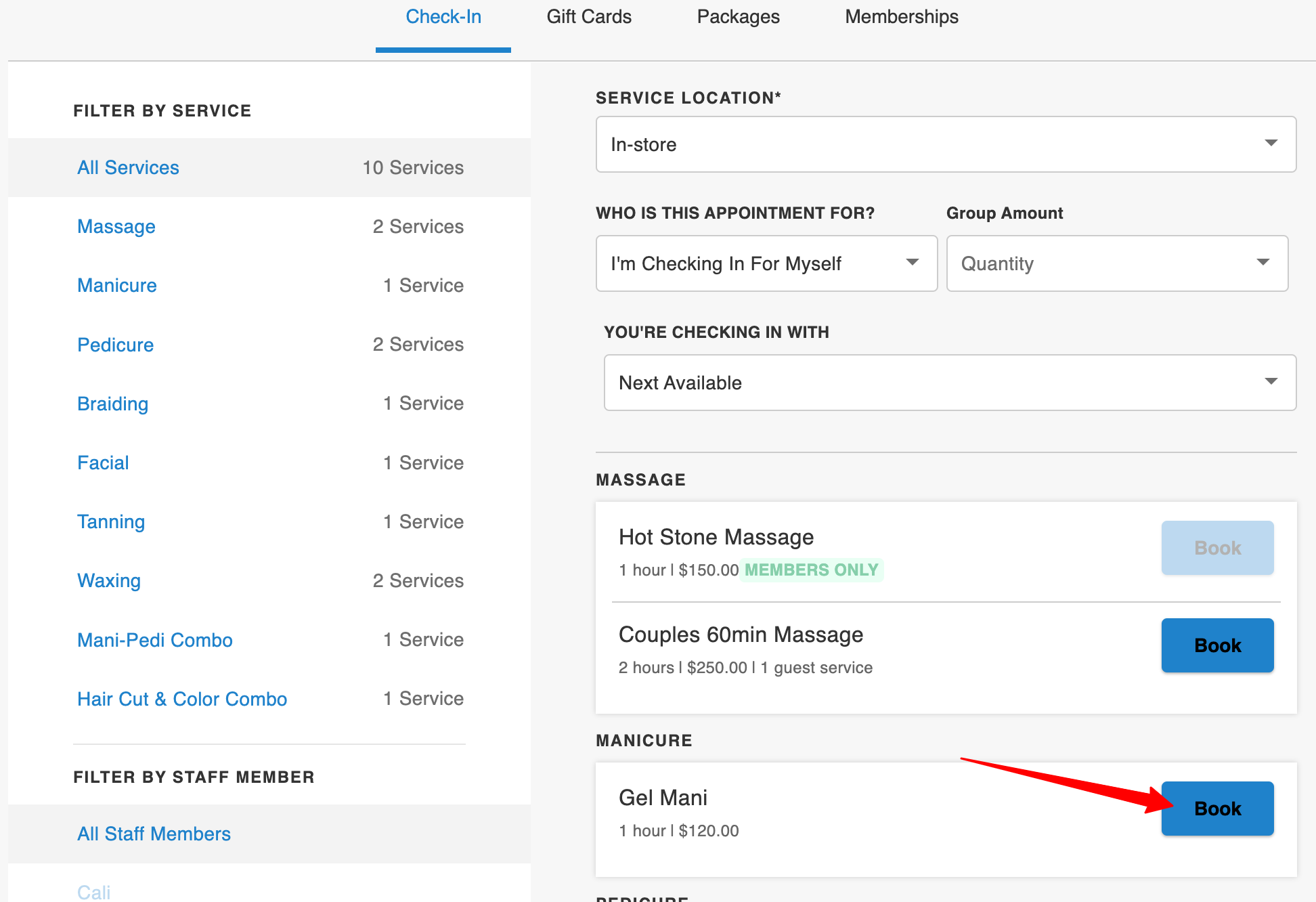
- Select the desired service
- The estimated wait time will be displayed
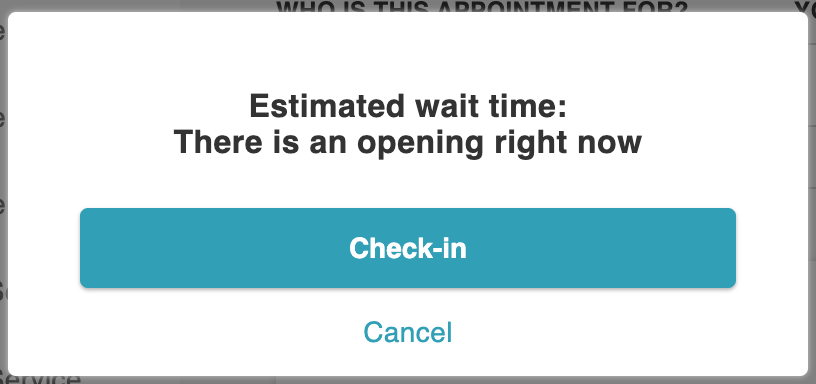
- Select the Check-In button
- Complete the intake form questions (where applicable)
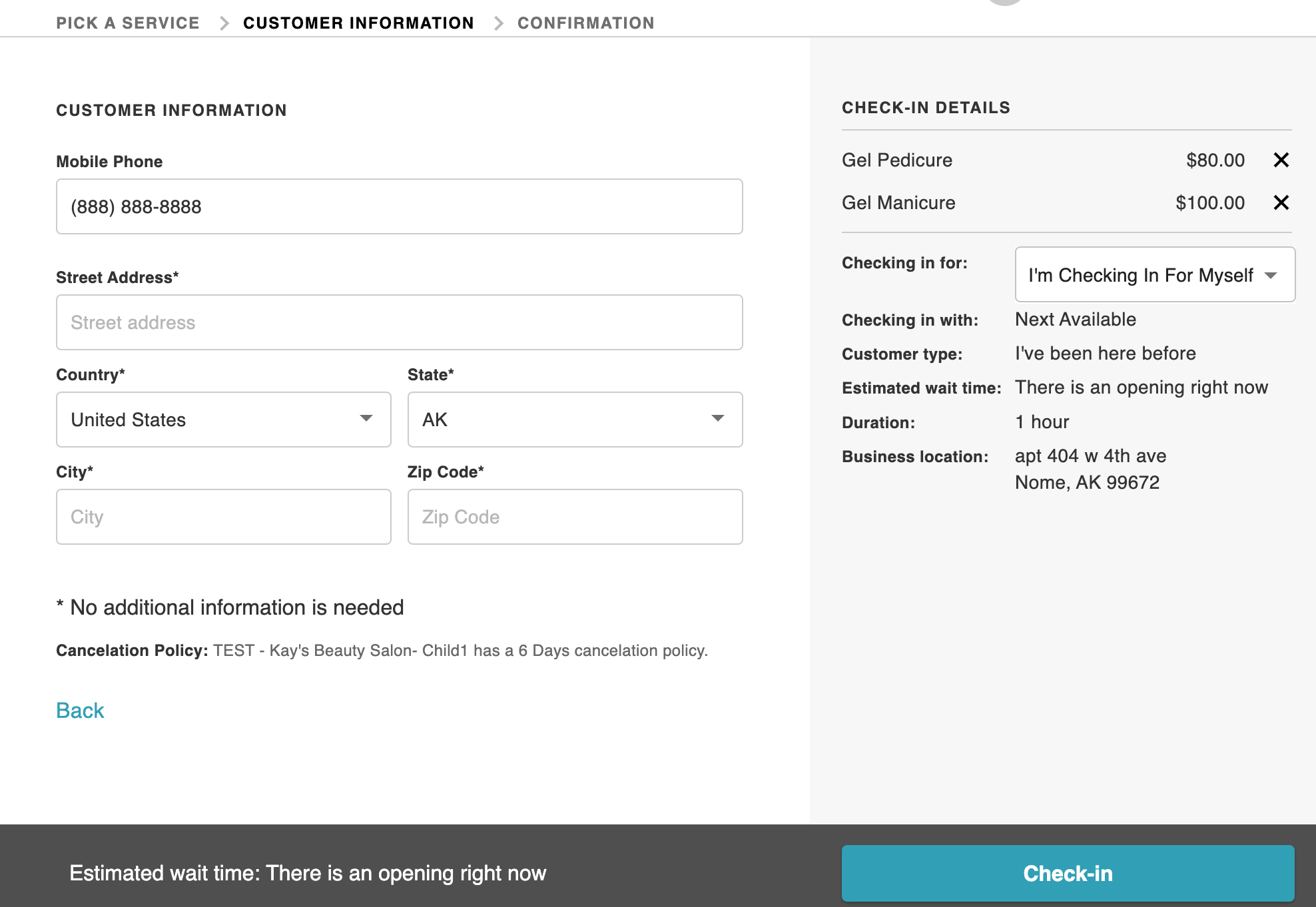
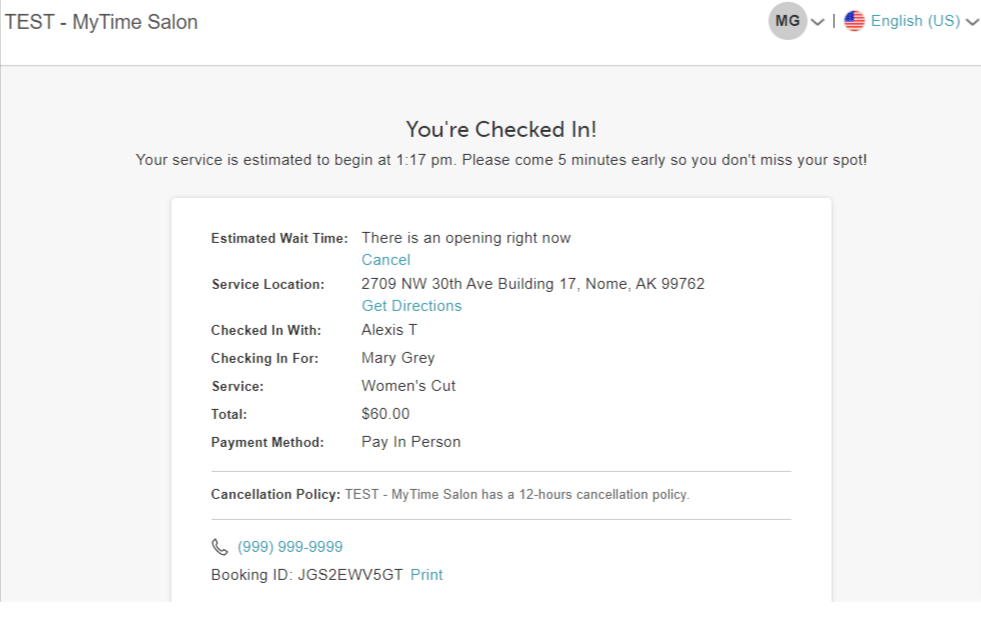
- Complete Check-In
- The check-in confirmation page will appear
For more information, contact support@mytime.com.
Related Articles:
Was this article helpful?
That’s Great!
Thank you for your feedback
Sorry! We couldn't be helpful
Thank you for your feedback
Feedback sent
We appreciate your effort and will try to fix the article