MyTime provides businesses with the capability to establish city, state, and local taxes per location for various offerings such as services, products, classes, packages, memberships, environmental fees, and cancellation fees. Once configured, these taxes are automatically included during the checkout process in POS. This article will guide you through the steps involved in setting up taxes.
Things to know:
- The ability to configure taxes is managed through the "Accessing Tax Settings" access control setting.
- Taxes cannot be configured for gift cards.
- Taxes for services and products are configured by category rather than by individual item.
- Once a tax is configured for an item group, it cannot be removed directly on a POS ticket. It must be edited or deleted via Business Setup > Settings.
- Add-on Logic: Taxes can be applied to add-ons collectively or individually, depending on the "Disable Individual Add-Ons on Taxes" hidden setting. Contact support@mytime.com to toggle this.
- Default Behavior: You can select "Add-ons - All" or pick individual add-ons from a dropdown.
- If Individual Add-ons are Disabled: You will only see a universal "Add-ons" category; the individual selection dropdown will be hidden.
- The setup option displayed in the top-right user menu depends on how you access the account and your assigned role:
- When navigating from the Parent Account (Location Management tab):
- Admin: Displays Business Setup when viewing the location account.
- Login As: Displays Location Setup when viewing the location account.
- When logged in directly at the Location Level:
- Location Owners & Location Managers: Display Location Setup.
- Service Providers & All Other Roles: Display Profile Setup.
To get started:
- Navigate to Business Setup / Location Setup > Settings
- Locate the Tax Configuration & Management section
- Click the + Add Another Tax hyperlink
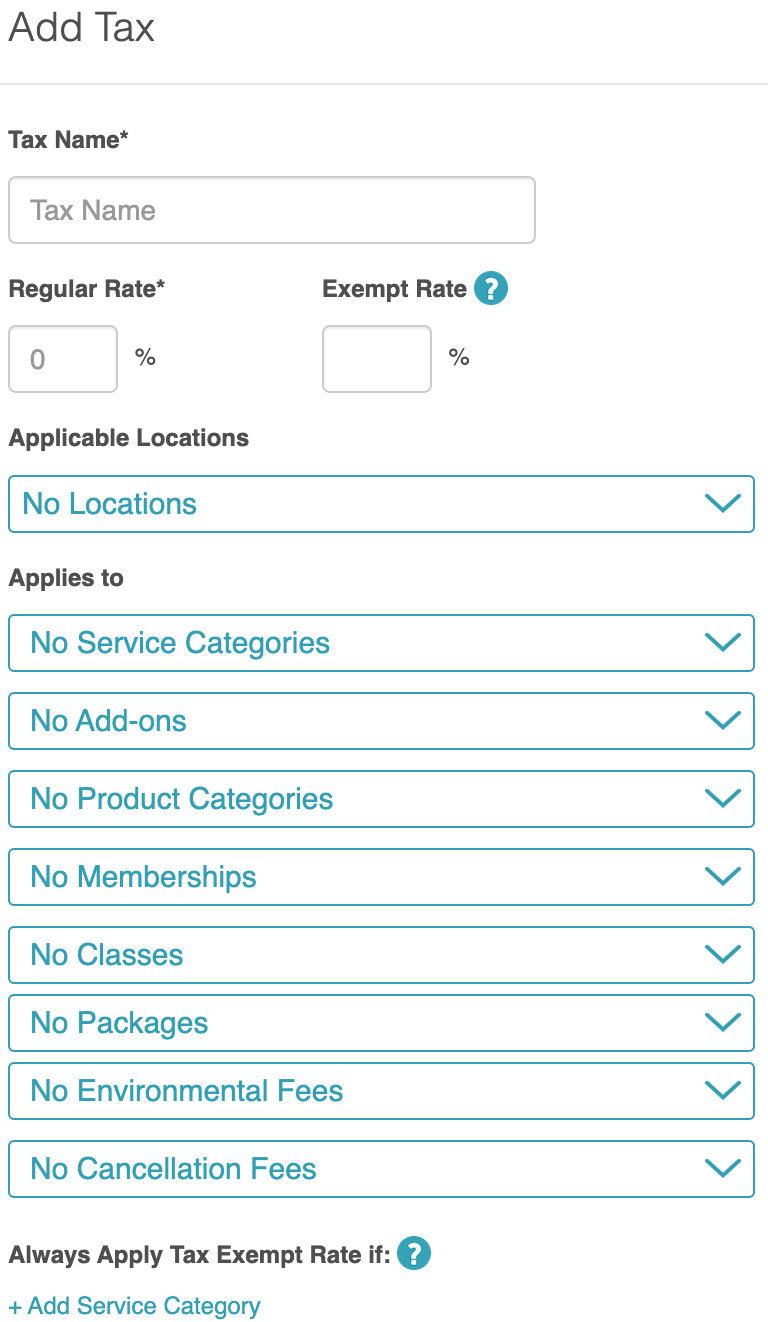
- When the modal opens, configure the following fields:
- Tax Name*: The name displayed on the POS ticket (e.g., "State Sales Tax"). This field is required.
- Regular Rate: The standard tax percentage to be charged. This field is required.
- Exempt Rate: The rate applied to clients designated as "Tax Exempt" in their profile.
- Applicable Locations: Select which locations will use this specific tax.
- Applies to: Choose the specific item groups to which the tax should be applied:
- Service Categories: Select all or individual service categories.
- Add-ons: Select all or individual add-on services. (Note: This field is disabled if you check the add-on checkbox within the Service Category field.)
- Product Categories: Select all or individual product categories.
- Memberships: Select all or individual memberships.
- Class: Select all or individual classes.
- Packages: Select all or individual packages.
- Environmental Fee: Select all or individual environmental fees.
- Cancellation Fees: Choose whether to apply this tax to cancellation fees for services and classes.
- Click Save in the modal
- Important: Click Save again at the bottom of the main Settings page to commit the changes

The tax will be automatically applied in the Point of Sale (POS) system and the booking widget when checking out a client. Additionally, the tax will be displayed on printed receipts or receipts sent via email or SMS.
POS

Booking Widget

Receipt

For more information, contact us at support@mytime.com.
Related Article
Was this article helpful?
That’s Great!
Thank you for your feedback
Sorry! We couldn't be helpful
Thank you for your feedback
Feedback sent
We appreciate your effort and will try to fix the article