Giving clients more ways to sign in means fewer obstacles between them and completing a booking. Clients can use their existing Google, Apple, or Facebook account to sign in across the booking widget, express checkout, and the Branded Guest App — a convenient alternative to the standard email and password login that works across every client-facing touchpoint your business uses. This article provides a step-by-step guide to the sign-in process, including standard login credentials, social sign-in options, and tips for troubleshooting access issues to get you back to your dashboard in seconds.
Things to know:
- Account Syncing Logic: To ensure a smooth experience, the system handles social sign-ins differently based on a client's existing status in your database:
- Existing Online Account: Clients with an existing MyTime account must sign in with their email and password first, then connect their preferred social account from the My Account page. After this initial link, they can use either method to sign in.
- In-Store Profile Only: If a client has an in-store record but no online login, signing in via a social account will automatically sync them, provided their email address and first name match exactly.
- Brand New Client: For those entirely new to your business, a new client profile is automatically created upon their first social sign-in.
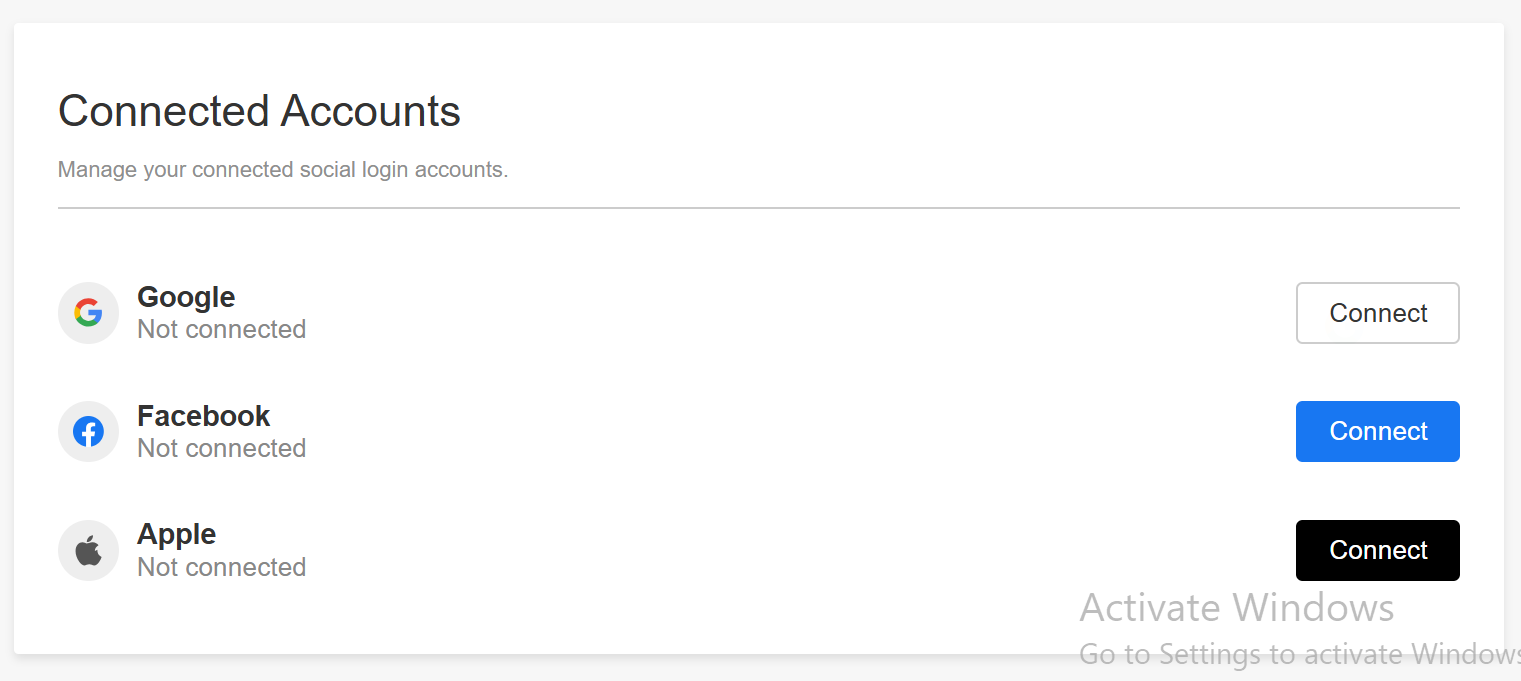
- After successfully linking a social account, the associated email address will appear directly beneath the provider's name (e.g., Google, Apple, or Facebook) within the 'Connected Accounts' section of your 'My Account' page.
- Clients have the option to disconnect their social media accounts at any time if they no longer wish to use them as a sign-in method. Learn more here.
- Social Sign-In Troubleshooting: Email Conflict
- Instead of displaying an error, the screen guides you through a one-time setup to connect your accounts:
- If you know your password: Enter it and click Sign In. Your social account will link automatically, allowing you to use either sign-in method moving forward
- If you forgot your password: Click Forgot Password?. Your email is automatically filled in, so you can reset it immediately
- If social buttons disappear: This is expected behavior. The Google, Apple, and Facebook buttons hide to help you focus on entering your password. Close and reopen the sign-in window to restore them
- If you selected the wrong social account: Close the sign-in window, reopen it, and select the correct account
- If a client forgets their password, they can click “Forgot Password?” during sign-in to receive a reset link from support@mytime.com. Learn more here.
- Apple allows sign-in using an encrypted email. While this may not match an existing MyTime account, Apple automatically forwards all MyTime emails to the client’s real inbox.
- If supported, clients can select “Continue as Guest” during checkout. This creates an in-store account only (no online account).
- If a client attempts to sign in with Google, Apple, or Facebook using an email address already associated with an existing MyTime account, the system guides them to link the accounts
- Account Link Prompt: A message indicates that an account already exists for that email address and prompts the client to enter their password to connect them
- Streamlined UI: To prevent confusion, social sign-in buttons temporarily hide so the client can focus solely on entering or resetting their password
- Autofilled Fields: The client’s email address automatically populates in both the password field and the "Forgot Password" workflow
- Permanent Linking: Once the client successfully logs in with their password, the social account is permanently linked. Subsequent logins can use either the social account or email/password combination
- Resetting the View: If the client closes and reopens the login screen or toggles between "Sign In" and "Sign Up," the social sign-in buttons will reappear
Contents:
- Signing In With Email and Password
- Signing In with Facebook
- Signing In with Apple
- Signing In with Google
- How to Disconnect Social Accounts (Google, Apple or Facebook)
- Frequently Asked Questions
Signing In With Email and Password
- Navigate to your business website
- Select the preferred location (if applicable)
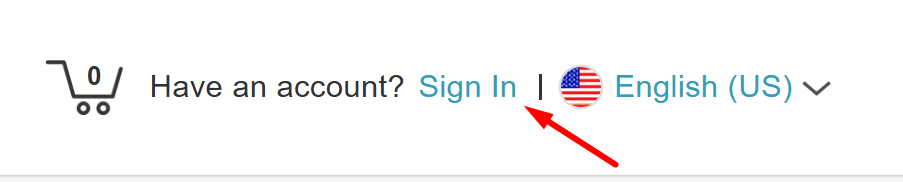
- Click "Sign In" at the top of the page to open the login modal
- Enter your email address and password in the sign-in modal
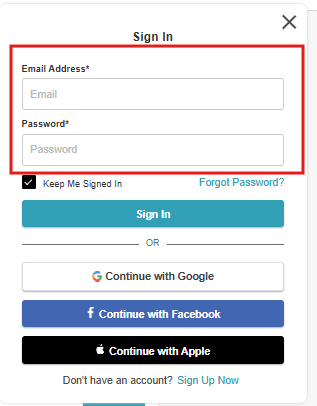
- Click 'Sign In'
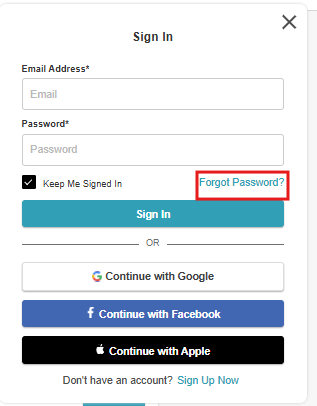
If they cannot remember their credentials, use the “Forgot Password?” link to reset them.
Signing In with Facebook
- Navigate to your business website
- Select the preferred location (if applicable)
- Click "Sign In" at the top of the page to open the login modal
- The "Sign In" modal will appear
- Select Continue with Facebook
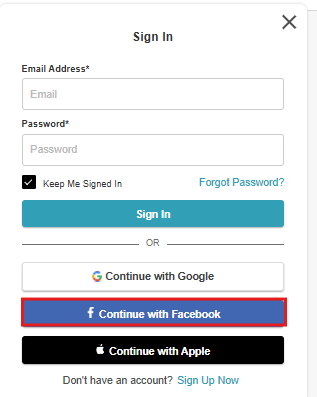
Enter their Facebook credentials and log in
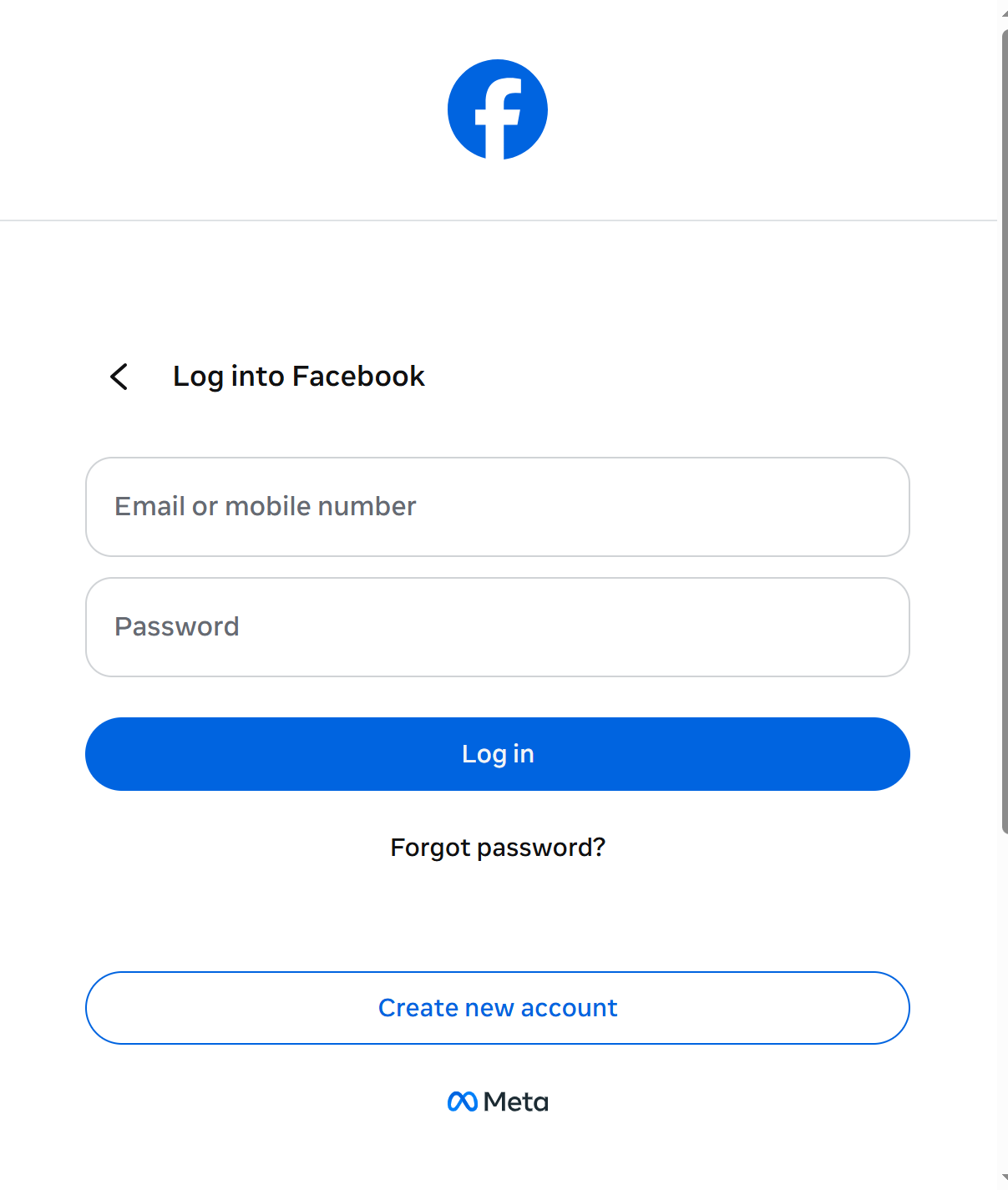
Authorize MyTime to access their account data. If their Facebook account matches an existing MyTime account, the two will sync automatically. If no match is found, a new MyTime account will be created.
Signing In with Apple
- Navigate to your business website
- Select the preferred location (if applicable)
- Click "Sign In" at the top of the page to open the login modal
- The "Sign In" modal will appear > Click Continue with Apple
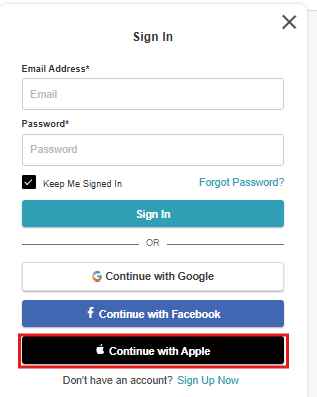
Enter their Apple ID credentials.
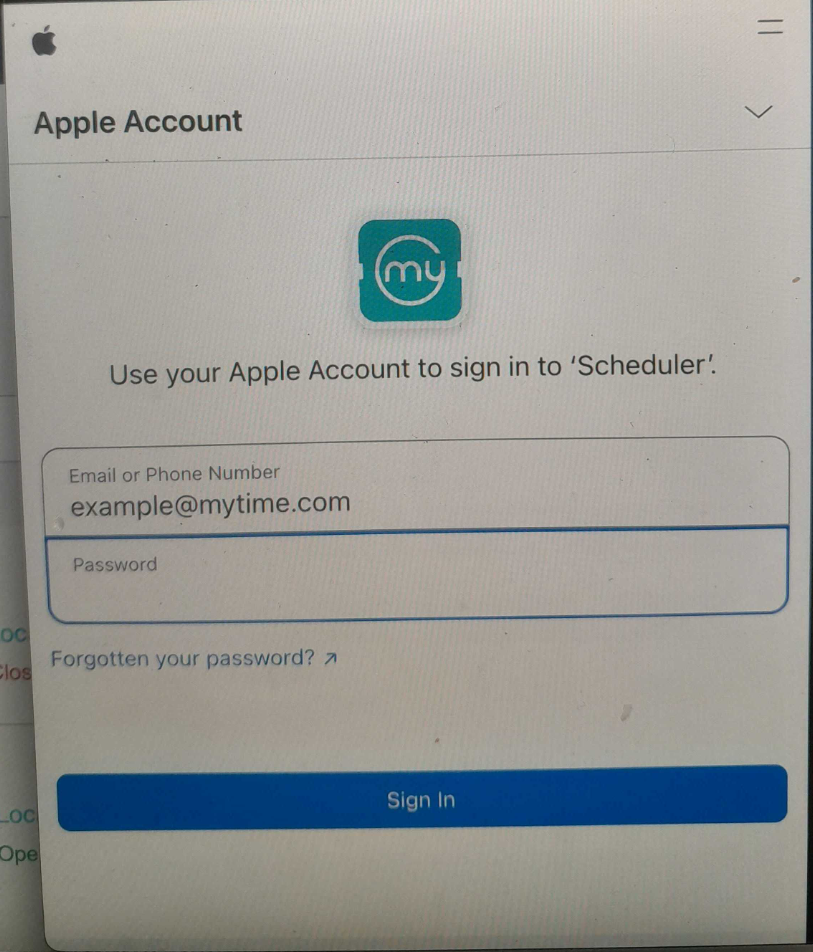
If their Apple ID matches an existing MyTime account, the two will sync.
If no match is found, a new MyTime account will be created.
If they choose to sign in with Apple’s encrypted email, MyTime emails will still reach them, as Apple automatically forwards them to their actual inbox.
Signing In with Google
- Navigate to your business website
- Select the preferred location (if applicable)
- Click "Sign In" at the top of the page to open the login modal
- The "Sign In" modal will appear > Click Continue with Google
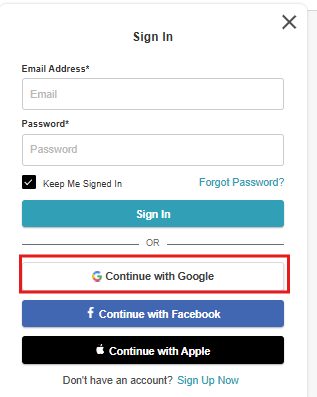
- Enter their Google credentials and log in:
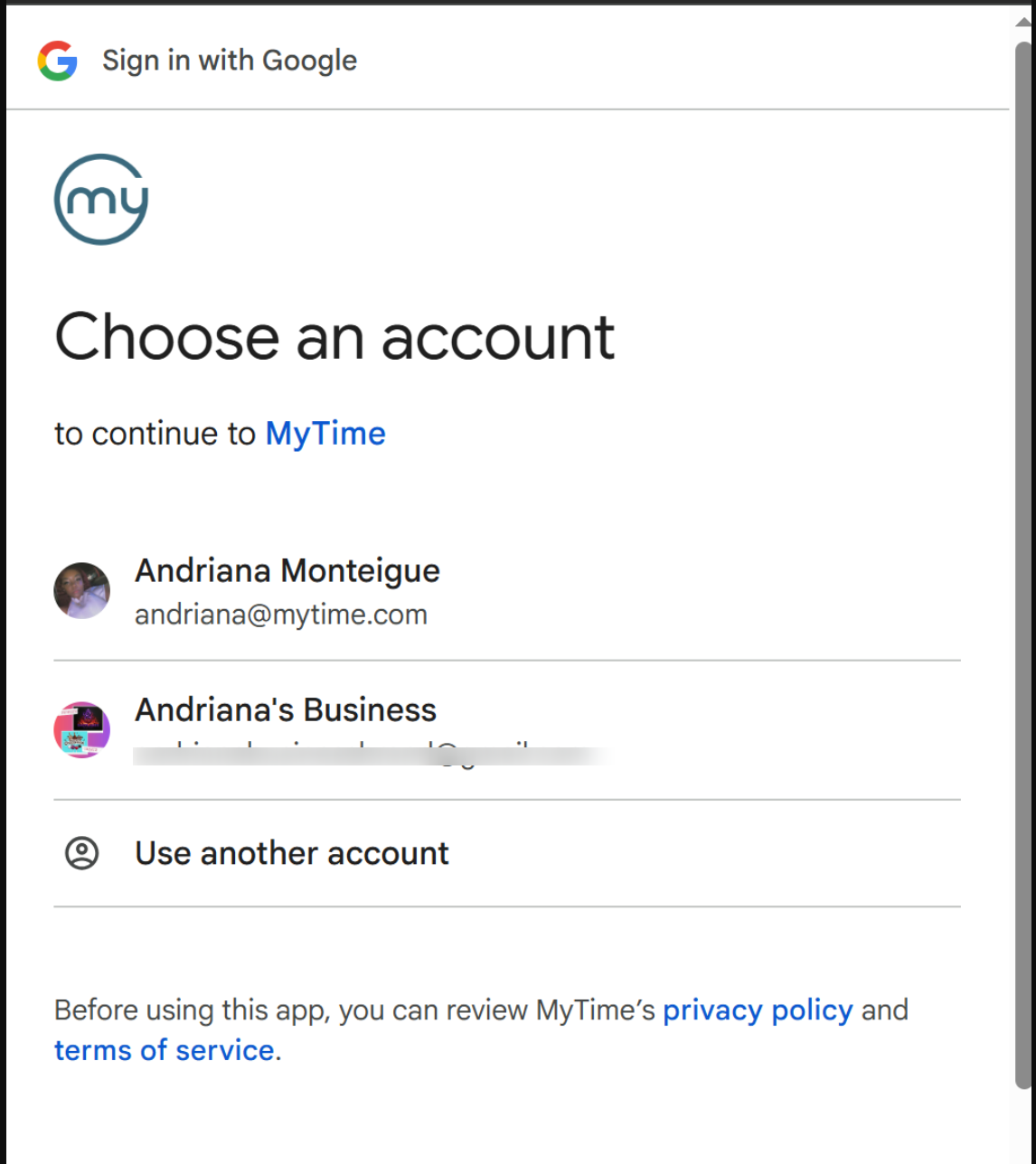
- Multiple Google Accounts: If the client is already signed into multiple Google accounts on their browser, they will be prompted to select the specific account they wish to use for MyTime.
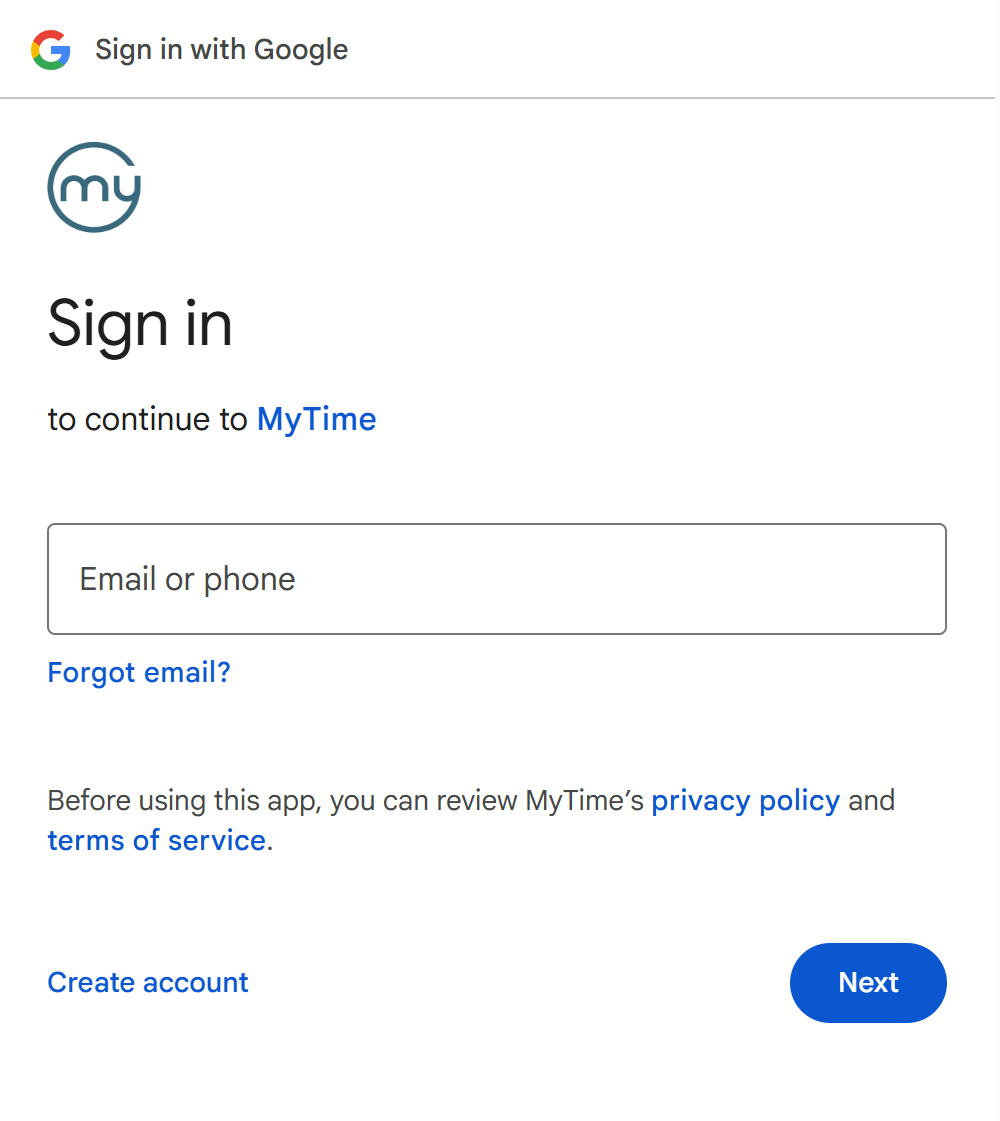
- Not Signed In: If the client is not currently signed into Google, they will be prompted to enter their Google credentials (email and password) to authenticate.
- Multiple Google Accounts: If the client is already signed into multiple Google accounts on their browser, they will be prompted to select the specific account they wish to use for MyTime.
- Once the account is selected or the credentials are entered, the client will be instantly logged into the booking widget and can proceed with their appointment.
If the client does not have an account, they can select the "Sign Up Now" hyperlink to create a new account.
How to Disconnect Social Accounts (Google, Apple or Facebook)
If a client has previously linked their Google, Facebook, or Apple account to MyTime for easier sign-in, they can remove this connection at any time. Clients can manage these platform connections by following these steps:
- Navigate to your website
- Log in using your current credentials (either via the social button or their email/password)
Click on their initial at the top of the page and select "Account" from the dropdown menu

On the 'Account' page, the client can scroll down to the "Connected Accounts" section
This section displays the current connection status for Google, Facebook, and Apple.
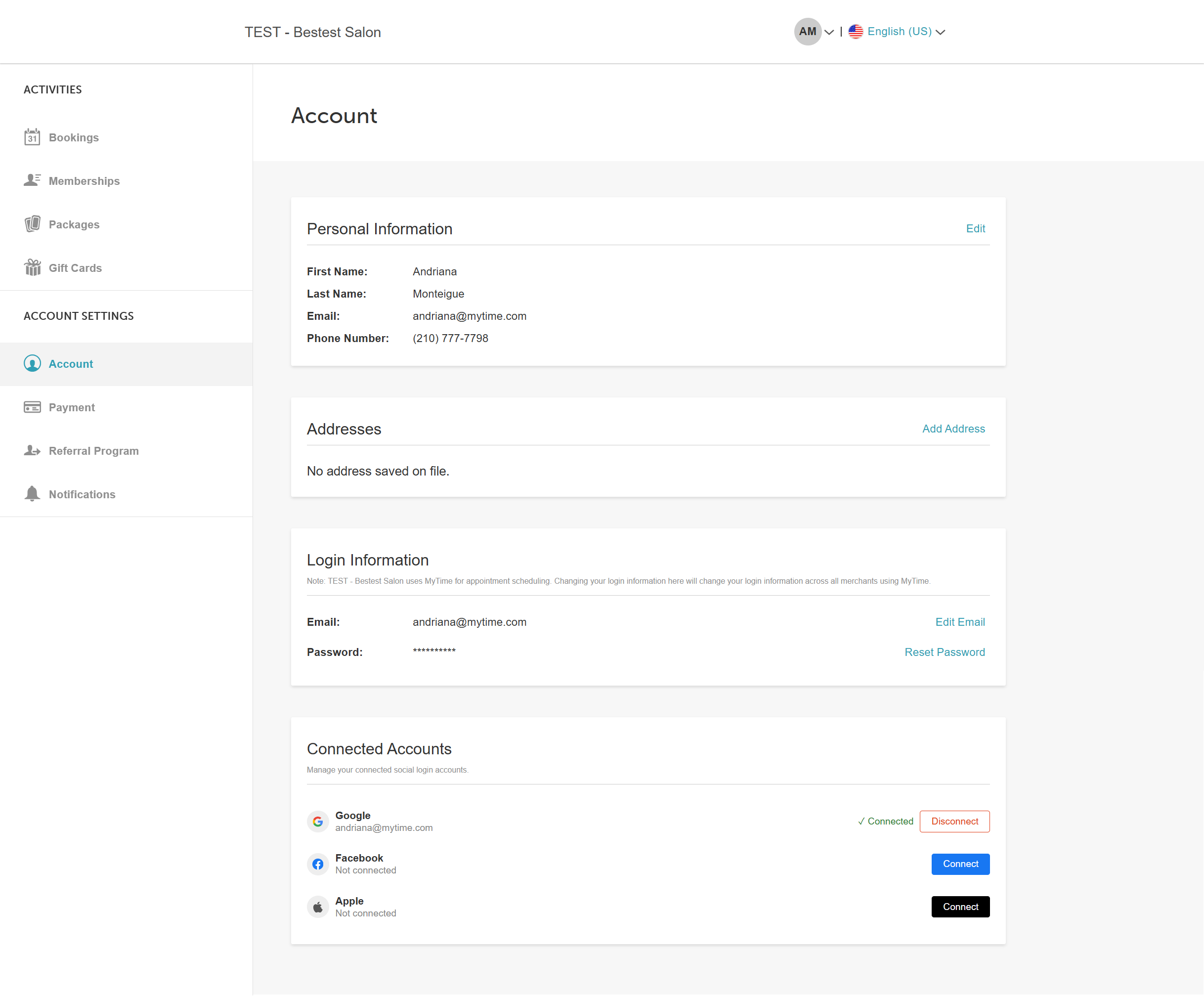
To unlink a social account, click the "Disconnect" button next to the social platform they wish to remove
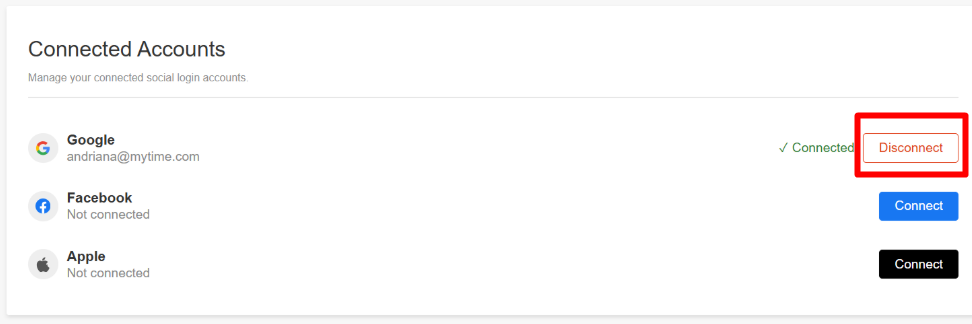
- Once disconnected, the platform will once again display a "Connect" button, confirming the link has been removed and providing the option to reconnect in the future.
Frequently Asked Questions
1. Does MyTime support Google, Apple, and Facebook sign-in for clients?
Yes, clients can sign in to MyTime (web or mobile app) using their existing Google, Apple, and Facebook accounts.
2. What happens when a new client signs in with Google, Apple, or Facebook for the first time?
A new client profile will automatically be created for them—no separate account setup needed. This applies to the booking widget, express checkout, and the Branded Guest App.
3. Where do social sign-in options appear for clients booking through MyTime?
On the booking widget, express checkout, and the Branded Guest App. The options appear automatically with no configuration needed.
4. How does MyTime connect a client's social account to their existing profile?
When a client uses a social sign-in option for the first time, MyTime will automatically link it to their existing profile if their email address and first name match. Once connected, they can sign in anytime using that option. In the rare case where a name difference results in a new profile being created, MyTime makes it simple to merge the two profiles in just a few clicks.
5. Can clients connect or disconnect a social sign-in account in MyTime?
Yes, clients can connect or disconnect social accounts from their MyTime account settings at any time.
6. Do clients need to use the same sign-in method every time?
No. Once a social account is connected, either sign-in method will work—they can use whichever they prefer at any given time.
7. How does social sign-in connect to an existing MyTime account for clients?
For clients who already have a MyTime account, they'll need to sign in with their email and password first, then connect their preferred social account from the My Account page—after which they can use either method anytime.
For more information, contact us at support@mytime.com.
Related Articles:
- Client Sign-Up Options on Widget/Express Checkout
- Client & User Profile Matching on the Public API
- Resetting Passwords
- Recaptcha Online
Was this article helpful?
That’s Great!
Thank you for your feedback
Sorry! We couldn't be helpful
Thank you for your feedback
Feedback sent
We appreciate your effort and will try to fix the article